| Bookmark Name | Actions |
|---|
Credential Policy
The Credential Policy feature within Spotlight allows employees to manage username and password policies for customers and prospects of financial institutions. Customers and prospects use their username and password to log into Infinity applications including Retail Banking, Consumer Lending, and Small Business banking.
The policies defined in Credential Policy screen are displayed within the Enrollment, Password Reset, and New User Onboarding features within the Infinity application suite.
Administrators with the appropriate permissions can view or edit the credential policies.
Menu path: Security and Authentication > Credential Policy
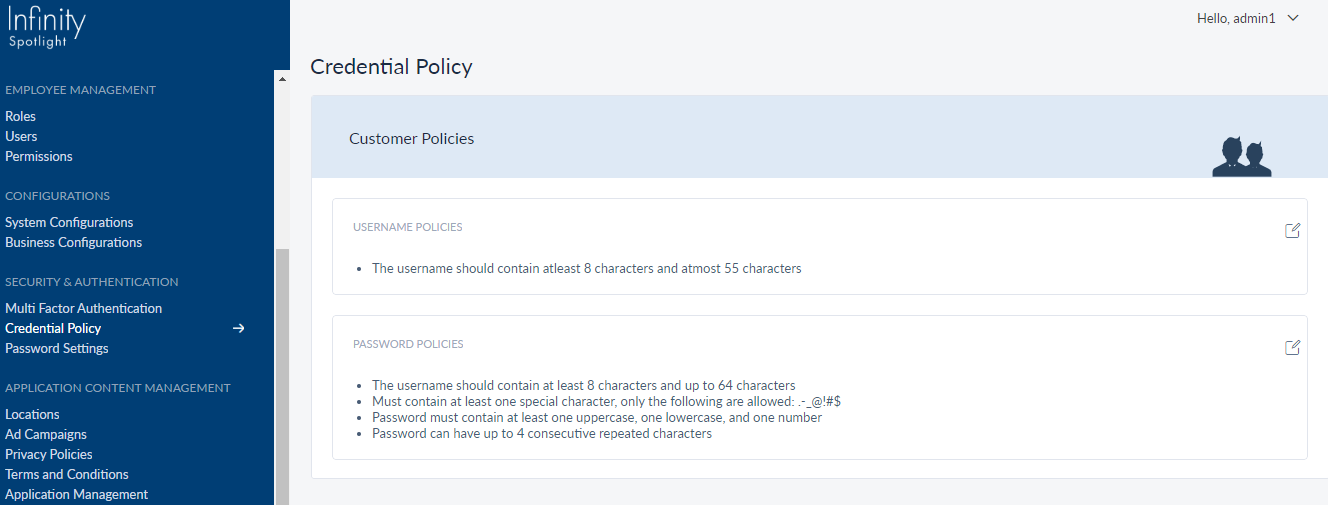
Spotlight displays the Credential Policy screen which shows the current username and password policies for the Customers.
An administrator can do the following:
- View Username and Password Policies and Descriptions
- Edit Username and Password Policies and Descriptions
View Policies and Descriptions
Use the feature to view the existing username and password policies on the Credential Policy screen.
An administrator can do the following:
- Click anywhere on the username or password policies to view the policies and descriptions.
- Click Edit
 to edit the username or password policies.
View Username Policies and Descriptions
To view the username policies and descriptions, click anywhere on username policies on Credential Policy screen. The Policies and Statements screen is displayed.
Menu path: Security and Authentication > Credential Policy > Policies and Statements
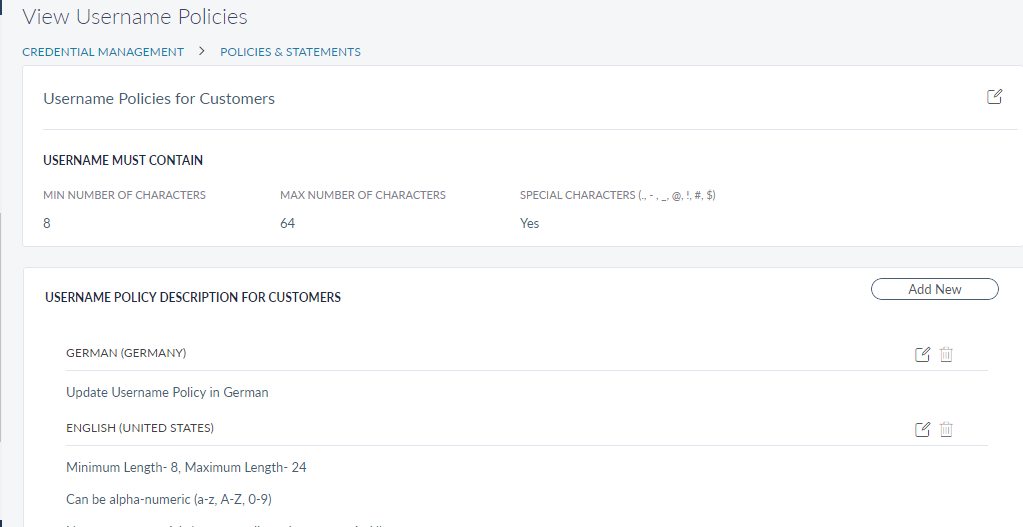
This screen displays the list of available username policies and descriptions.
Username Policies
The Username Policies for Customers section displays the current settings for the username policy. This includes:
- Minimum Number of Characters
- Maximum Number of Characters
- Special Characters
Username Policy Description
The Username Policy Description section displays the created policy descriptions for the username policies. The policy descriptions are displayed in the selected language.
Administrators can create policy descriptions in the following languages:
- English (US)
- English (UK)
- German
- French
- Spanish
- Italian
- Swedish
Administrators can do the following:
- Click Edit beside username policies for customers, to edit a username policy.
- Click Edit beside a policy description, to edit a username policy description.
- Click Add New to add a new policy description.
- Click Delete
 to delete a policy description.
View Password Policies and Descriptions
To view the password policies and descriptions, click anywhere on Password Policies on Credential Policy screen. Policies and Statements screen is displayed.
Menu path: Security and Authentication > Credential Policy > Policies and Statements

The screen displays the password policies and policy descriptions.
Password Policies
The Password Policies section displays the following set of parameters to create a password policy.
- Length of Password
- Minimum Number of Characters
- Maximum Number of Characters
- Special Characters
- Password Must Contain
- Selected Options
- Max Number of Consecutive Repetition
Password Policy Description
The Password Policy Description section displays the created policy descriptions. Multi-lingual support is provided for policy descriptions.
The Password Policy Description section displays the selected language and policy description in the selected language.
Administrators can create policy descriptions in the following languages:
- English (US)
- English (UK)
- German
- French
- Spanish
- Italian
- Swedish
Administrators can do the following:
- Click Edit beside password policies, to edit a password policy.
- Click Edit beside each policy description, to edit the policy description.
- Click Add New to add a new policy description.
- Click Delete to delete a policy description.
Edit Policies and Descriptions
An administrator can edit the username and password policies and descriptions. Please note that an administrator is required to select the edit option available in each section (username and password) for making changes for that section.
Menu path: Security and Authentication > Credential Policy > Edit (username or password policies)
The Edit Username policies or Password policies screen is displayed.
Edit Username Policies and Descriptions
Edit Username Policies
To edit the username policies:
- Click Edit beside the Username Policies on Credential Policy screen. The Edit Username Policies screen is displayed.
- Otherwise, click Username Policies on Credential Policy screen. The View Username Policies screen is displayed.
- Click Edit beside Username Policies for Customers. The Edit Username Policies screen is displayed.
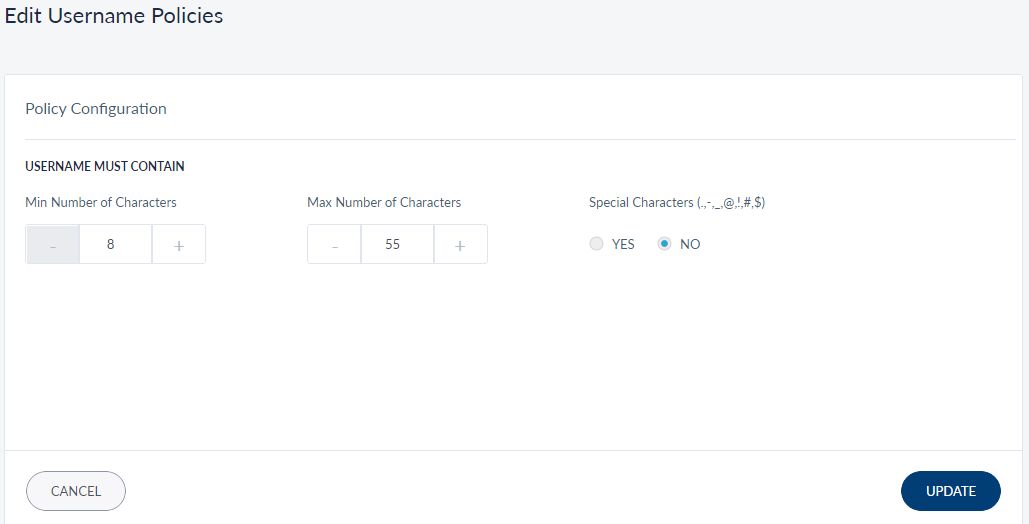
The Edit Username Policies screen displays the following set of parameters a username must contain:
- Min Number of Characters: This field displays the minimum number of characters for creating a username. The minimum number of characters is 8, by default.
-
Max Number of Characters: This field displays the maximum number of characters for creating a username. The maximum number of characters is 64, by default.
NOTE:- Validations for creating a username policy:
- Only numeric values are accepted.
- Zero is not accepted as a minimum or maximum length of character.
- The value entered for a maximum number of characters must be greater or equal to the value for a minimum number of characters.
- Validations for creating a username policy:
- Click +/- to increase or decrease the number of minimum or maximum characters for the length of a username.
-
Special Characters: Select 'Yes' or 'No' to allow customers to include special characters when creating a username.
-
Click Update to save the changes.
NOTE: Cancel the process at any time. The changes are not saved.
Edit Username Policy Descriptions
An administrator can edit the username policy description from the Edit Username Policies screen.
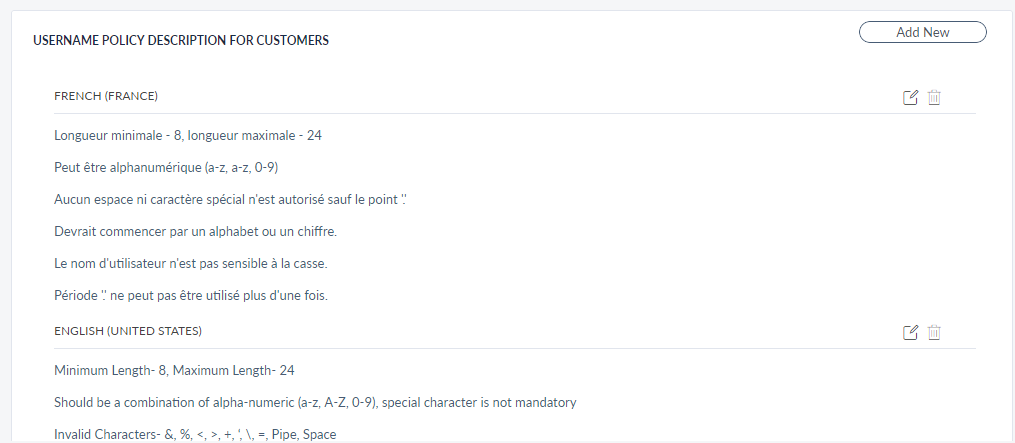
Click Edit beside the policy description under Username Policy Description section.
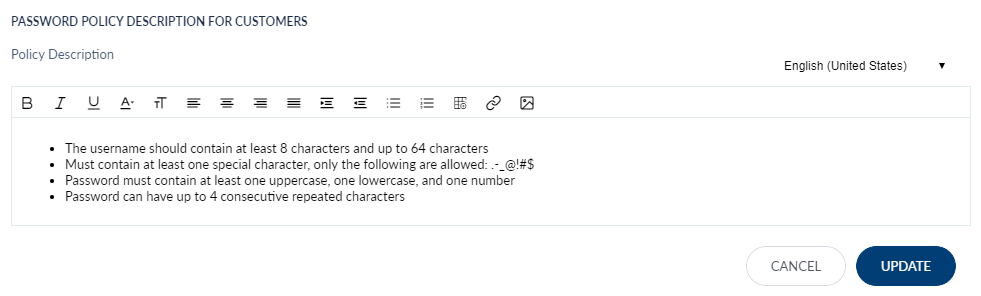
- Administrators can do the following:
- Select the desired language from the top right corner.
Modify the policy description.
NOTE: The Policy Description window supports Rich Text format. The formatted text is displayed in the front-end application (where the policy is displayed).
- Click Update to save the changes.
NOTE:
- An administrator can cancel the process at any time. The changes are not saved.
- Click Delete to delete a Username policy description.
Edit Password Policies and Descriptions
Edit Password Policies
To edit the Password policies:
- Click Edit beside the Password Policies on Credential Policy screen. The Edit Password Policies screen is displayed.
- Otherwise, click Password Policies on Credential Policy screen. The Policies and Statements screen is displayed.
- Click Edit beside the Password Policies for Customers. The Edit Password Policies screen is displayed.

The Edit Password Policies screen displays the following set of parameters a password must contain:
- Length of Password
- Min Number of Characters: This field displays the minimum number of characters for creating a username. The minimum number of characters is 8, by default.
Max Number of Characters: This field displays the maximum number of characters for creating a username. The maximum number of characters is 64, by default.
NOTE:- Validations for creating a username policy:
- Only numeric values are accepted.
- Zero is not accepted as a minimum or maximum length of character.
- The value entered for a maximum number of characters must be greater or equal to the value for a minimum number of characters.
- Validations for creating a username policy:
Click +/- to increase or decrease the number of minimum or maximum characters for the length of a username.
Special Characters: Select 'Yes' or 'No' to allow customers to include special characters while creating a username.
NOTE: The following special characters are supported for creating a username (., -, _, @, !, #, $).
- Password must contain: Select any one option from the following
- Uppercase letters
- Lowercase letters
- Numbers
Special Characters
NOTE: The following special characters are supported for creating a username (., -, _, @, !, #, $).
- Character Repetition: Click +/- to increase or decrease the number of consecutive repetition of the characters.
- Click No Restriction check box if there is no restriction on character repetition.
-
Click Update to save the changes.
NOTE: Cancel the process at any time. The changes are not saved.
Edit Password Policy Description
Use the feature to edit the password policy description from the Edit Password Policies screen.
Click Edit displayed beside each policy description under Policy Description section.
Administrators can do the following:
- Select the desired language from the top right corner.
-
Modify the policy description.
NOTE: The Policy Description window supports Rich Text format. The formatted text is displayed in the front-end application (where the policy is displayed).
- Click Update to save the changes.
NOTE:
- Cancel the process at any time. The changes are not saved.
- Click Delete to delete a password policy description.
Add a New Policy Description
Administrators can use the feature to add a new policy description for usernames and passwords.
Menu path: Security and Authentication > Credential Policy > Policies and Statements > Add New
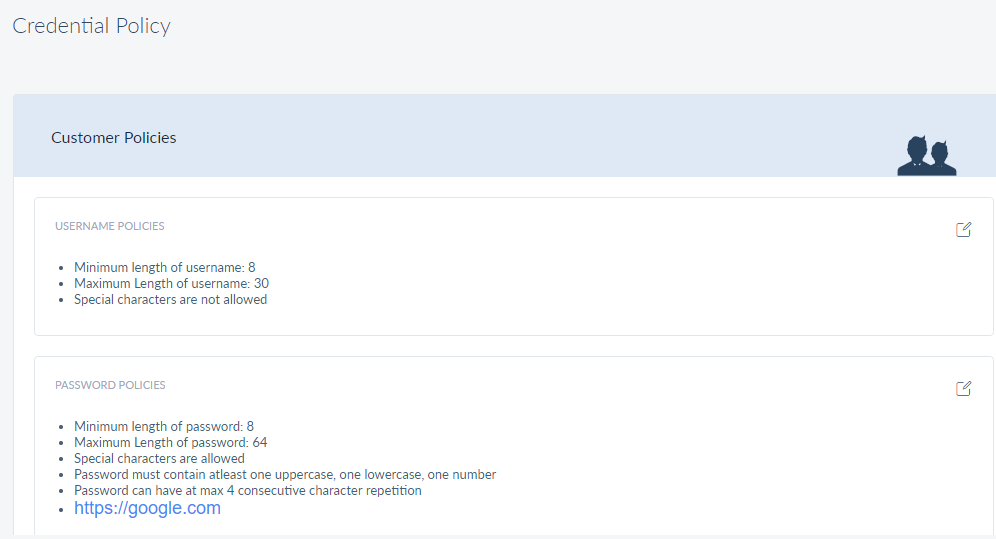
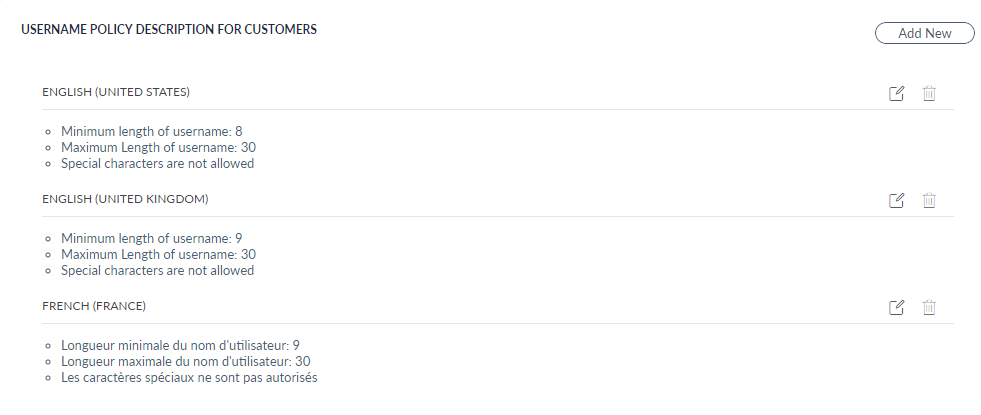
Multi-lingual support is provided for policy descriptions. Administrators can add policy description in any of the following languages:
- English (US)
- English (UK)
- German
- French
- Spanish
- Italian
- Swedish
Click Add New beside Policy Description section. The Add Policy Description screen is displayed.
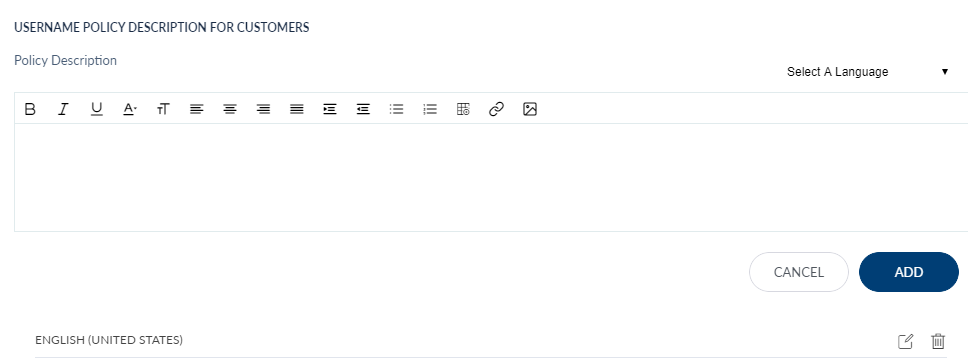
- Select the language from the list and enter the description to define a new policy description.
-
Click Add. A new policy description is added.
NOTE: Cancel the process at any time. The changes are not saved.
Add Bookmark
save your best linksView Bookmarks
Visit your best links BACK
BACK


Are you sure you want to log-off?